
Member Impersonation
Member impersonation allows you to view the platform exactly as a specific member sees it, helping you troubleshoot issues and provide guided assistance effectively.
What You'll Learn
- When to use impersonation appropriately and safely
- Step-by-step impersonation process and best practices
- Security requirements and compliance considerations
- Common scenarios and troubleshooting techniques
- Proper documentation and follow-up procedures
Critical Security Requirements
- End impersonation immediately when assistance is complete
- Never make changes without explicit member permission
- All actions are logged and audited for compliance
- Only use for legitimate support purposes with member consent
- Document the reason for impersonation in member notes
When to Use Impersonation
Step-by-Step Impersonation Process
Use the Members tab to search for and open the member's profile page. Ensure you have the correct member before proceeding. Double-check that the member's name and email match what they provided during identity verification.
Look for the "Impersonate" option in the member's profile header within the Actions menu. This will begin the impersonation session.
You'll see a prominent notification bar at the bottom left of the page indicating you're impersonating the member. This bar remains visible throughout the session and is designed to be highly visible to prevent accidental actions.
You now see exactly what the member sees. Navigate through their interface to troubleshoot the issue or provide guided assistance. Explain your actions to the member so they can learn to navigate independently in the future.
Click the "End Impersonation" button in the notification bar immediately when your assistance is complete. Return to normal support dashboard view. Never leave an impersonation session running - always end it promptly when assistance is finished.
Understanding Member Experience
During impersonation, you experience the platform exactly as the member does:
- Same search results: See the healthcare providers and pricing available in their location
- Personalized content: View their insurance plan details and coverage information
- Navigation challenges: Experience any usability issues they might encounter
- Error conditions: Reproduce technical problems they're reporting
- Account settings: Access their preferences and saved information
Important Reminder
Any changes made during impersonation will affect the member's actual profile, including updates to zip codes, search history, and account preferences. Only make changes with explicit member permission.
Common Scenarios
Here are typical situations where impersonation is most valuable:
After Impersonation
Complete these important steps after ending your impersonation session:
- Document thoroughly: Add detailed notes about the issue and resolution to the member's profile
- Follow up if needed: Set reminders for any promised follow-up actions or escalations
- Share insights: If you discovered a common issue, share findings with your support team
- Verify resolution: Confirm with the member that their issue has been resolved satisfactorily
- Update case status: Mark support tickets as resolved or update with current status
Peer Impersonation Not Supported
To protect the privacy and security of other team members, peer impersonation is not allowed between Support Users. This includes all Tier levels.
Controlling Impersonation Access
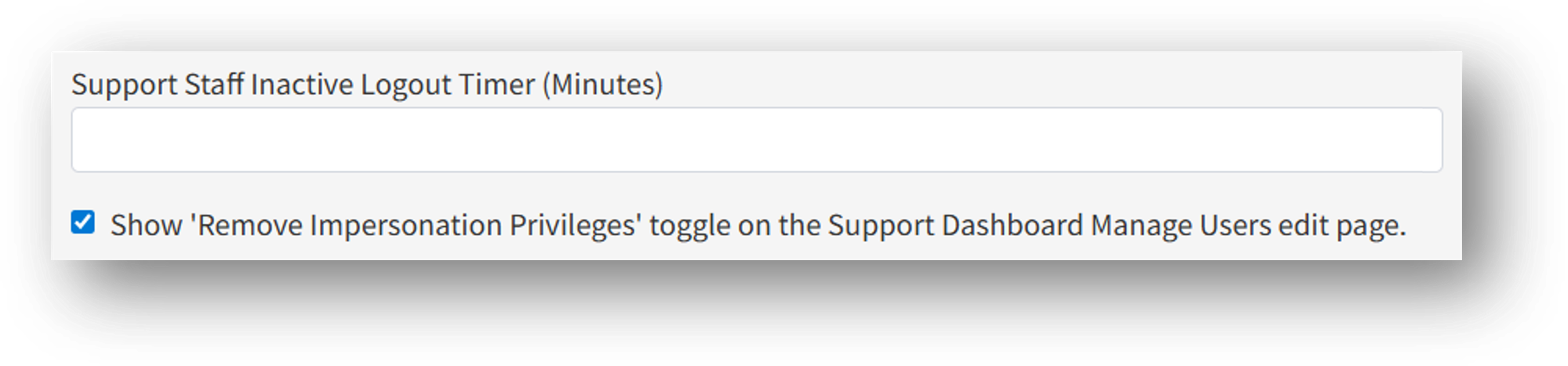
If controlling access to Impersonation is important, you can discuss with your TALON CSM the ability to enable the "Remove Impersonation Privileges" from Support Users. Once enabled, you can manage the Support Users with/out access to this capability.
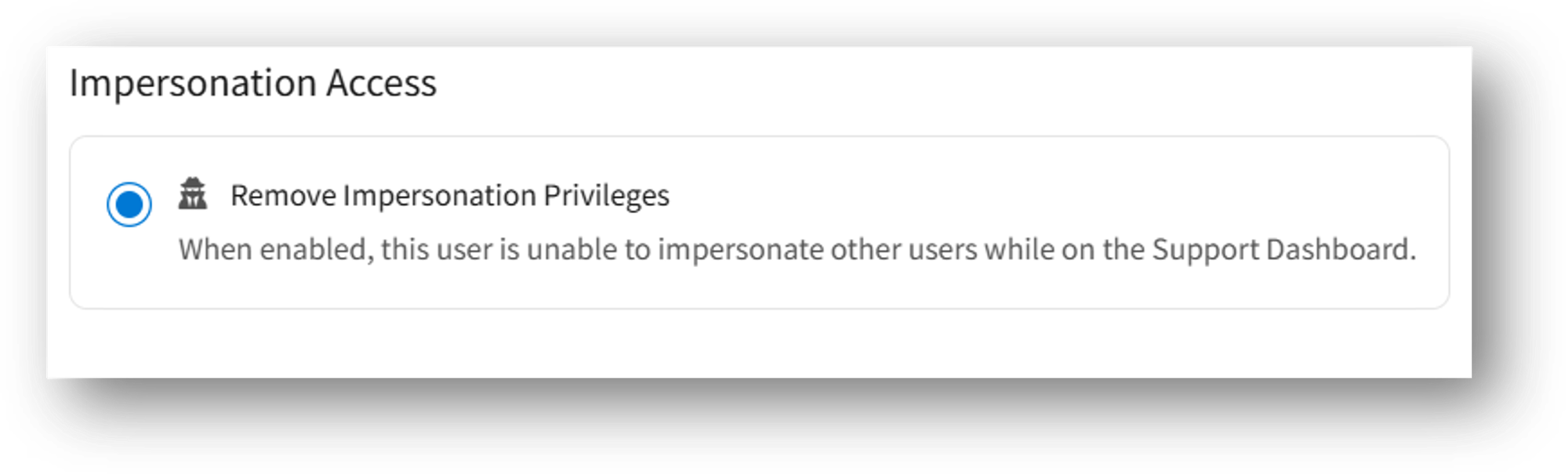
When enabled, the ability to access Impersonation from the Actions menu of a member is removed from the Edit options associated with the Support User account.